Cartoon Photo Editor-Toon Art
Bilge Bulut MobileArt & Design
4.0153.00 Reviews
- Version
- 3.6
- Installs
- 5.00M
- Age Rating
- Everyone
Screenshots
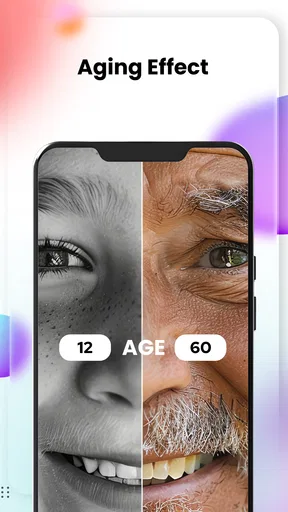
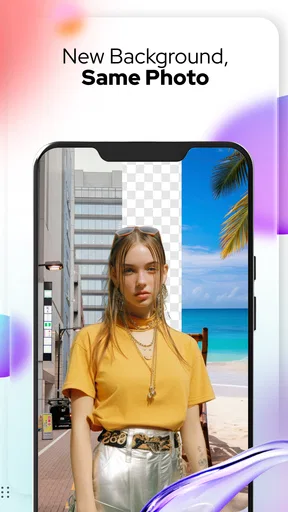
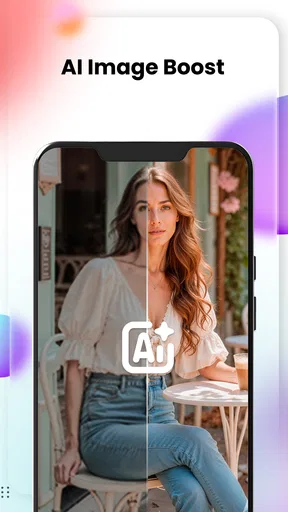
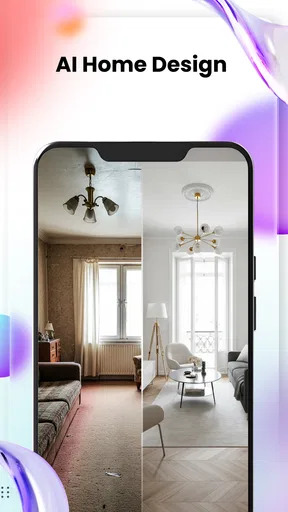
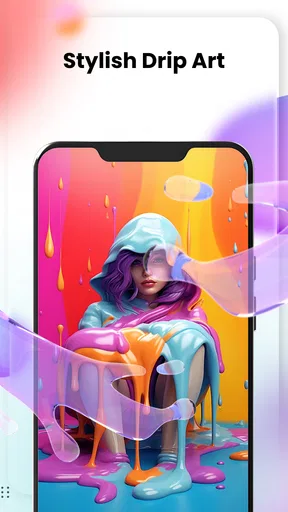
Our Review of Cartoon Photo Editor-Toon Art
 Analysis by Appyee
I usually reach for a cartoon effect when a photo needs more personality than a standard filter can give it: a profile picture that feels a little flat, a funny image for a group chat, or a small creative project I can finish in a spare moment. Cartoon Photo Editor-Toon Art is built for that kind of quick transformation. It focuses on cartoon, caricature, and portrait treatments rather than trying to be a full photo studio, which gives the experience a clear purpose.
That focus is useful, but it also sets expectations. I would not open it expecting the detailed layer controls or careful retouching tools of a professional editor. I would open it with a photo I already like and see whether a drawn treatment makes it more expressive. For a casual experiment, that is a satisfying starting point; for a polished illustration made from scratch, it is the wrong kind of tool.
Choose a photo that gives the effect a fair chance
The best input is usually a bright, fairly sharp portrait with the face easy to see. Strong shadows, motion blur, or a busy background can compete with the effect, so I would first pick a cleaner image rather than trying to rescue a difficult one with a filter. This small choice can matter more than cycling through lots of styles: if the source photo is unclear, the result may feel muddy no matter which look I choose.
For a quick everyday example, imagine I want a new profile image before a video call or a playful avatar for a chat. I would choose a recent head-and-shoulders photo, check that the eyes and hair are visible, and try a few treatments before settling on one. If the result makes my face harder to recognize, I would switch back to a subtler look or start with a different photo. The aim is not simply to make the image more stylized; it is to keep enough of the original expression that friends still know it is me.
A quick workflow, with a little room to refine
After choosing a picture, I would compare the available looks before spending time on finishing touches. A caricature-style effect can make a portrait feel comic and exaggerated, while a more restrained portrait treatment may suit a profile image better. Cartoon and pop-art-inspired options are more useful when the goal is to make a bold, noticeable post. The practical tip is to judge each version at the size where it will actually appear: a busy effect can look exciting full-screen but become hard to read as a tiny avatar.
Once a style feels close, the controls described for the app let you adjust intensity and colors, then add text or stickers. I would do those steps in that order. First find a treatment that preserves the face; then use small adjustments to make it feel intentional; only after that add decoration. Text and stickers can help turn a portrait into a birthday greeting or a simple reaction image, but too many extras compete with the face and make the result feel cluttered.
It is also worth keeping a clean version of the original photo outside the editing process. That gives me a straightforward way to compare the transformation and choose a different source image if the effect is unflattering. When I want to share the result, I would check the finished image at normal viewing size and make sure any text is readable before sending or posting it. That final pause is especially helpful for images intended for a profile, where a small crop can hide details that looked fine during editing.
Where it fits among photo tools
There are two common alternatives: a general-purpose editor with many adjustments, or a one-tap filter tool that offers little room to personalize the result. Toon Art sits closer to the quick-effect side, while its intensity, color, text, and sticker options give me a little more control than a bare filter button. That makes it a reasonable middle ground when I want a recognizable portrait with a playful finish, not a painstaking edit.
That trade-off is important. A general editor is a better choice if I need precise cropping, layered artwork, or a carefully controlled retouch. A drawing app is more suitable if I want to build an image by hand. Toon Art is strongest when the photo already works and I want to explore a different visual mood without turning the task into a long editing session. I would skip it if my main goal were professional product photography or a consistent, detailed illustration style across a large project.
Getting Started with Toon Art
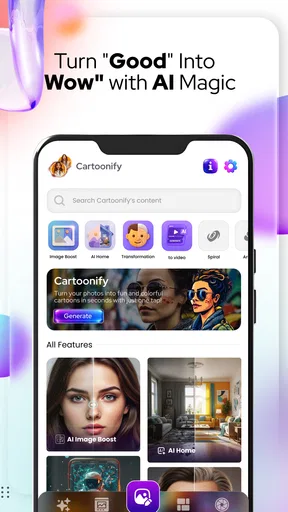
First things first, downloading the app is a breeze. Available on both Android and iOS, you can find it easily in your respective app store. Once installed, the interface is pretty user-friendly. The design is simple yet colorful, which perfectly sets the tone for the fun you’re about to have.
Upon opening the app, you’re greeted with a straightforward menu. You can either take a new photo or upload one from your gallery. I found that using a clear, well-lit photo yields the best results. Once your photo is selected, it’s time to dive into the wonderful world of cartoon transformations.
Features That Stand Out
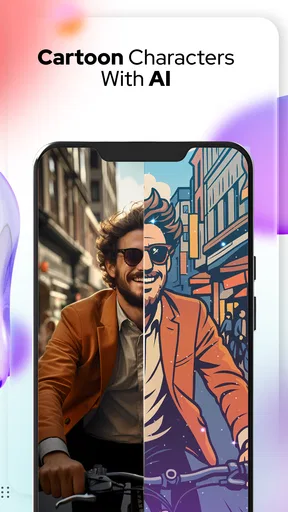
The Cartoon Photo Editor-Toon Art app is loaded with features that cater to various artistic tastes. You’ve got a plethora of filters to choose from, each with its unique style. Whether you’re into classic cartoon, pop art, or even manga, there’s something for everyone. The filters are incredibly easy to apply—just a tap, and voila, your photo is transformed.
One feature I particularly enjoyed is the customization option. You’re not just limited to filters; you can adjust the intensity, tweak colors, and even add text or stickers to your creations. This level of customization allows for a more personal touch, making each cartoon version truly unique.
The User Experience
Using the app is as smooth as butter. The transitions between menus and features are seamless, and I didn’t encounter any lags or crashes during my time with it. The app developers seem to have put a lot of thought into making the user experience as enjoyable as possible.
Moreover, there’s a community aspect where you can share your creations and see others’ work. It’s a fun way to get inspiration and maybe even make a few cartoon-loving friends along the way.
Why You’ll Love It
Let’s face it, who doesn’t love a good cartoon version of themselves? The Cartoon Photo Editor-Toon Art app is not just about creating cartoons; it’s about having fun and expressing yourself. Whether you’re looking to spice up your social media or just want to create something special for yourself, this app has got you covered.
Additionally, the app is frequently updated with new filters and features, keeping things fresh and exciting. It’s clear the developers are committed to continuously improving the app, which is always a plus in my book.
Who should try it, and where the process can snag
This is a free Art & Design app from Bilge Bulut Mobile, with a 4.4 average from around 5.7 thousand ratings and over a million installs. It is rated for Everyone, and version 3.4 supports Android 6.0 and up. Optional in-app purchases range from $4.99 to $29.99 per item, so I would treat the free download as a chance to explore before deciding whether any paid option fits how often I would use it.
That pricing context matters most if I only need one image. For a one-off birthday avatar or a quick joke for a family chat, I would first see how far the free experience takes me rather than assuming I need to buy anything. If I regularly make stylized portraits, I would compare the cost of any purchase with how much I value the app’s particular looks and simple workflow. Someone who edits only occasionally may be better served by a general editor they already use.
There are a few practical handoffs to think about. The photo begins in the camera or gallery, becomes an edited image, and then needs to move to wherever I plan to use it: a profile, message, or social post. I would keep the intended destination in mind while editing. A square profile crop, for example, may cut off a sticker or a line of text placed near an edge, while a portrait shared in a chat has more room to show the whole composition.
I would also avoid treating every effect as equally suited to every subject. A close portrait gives the app a clear face to work with; a group shot asks the effect to handle several faces and competing details at once. If a group image comes out uneven, I would try editing a single person instead of repeatedly changing settings on the crowded original. That is a useful boundary: the app is most appealing when one subject is the visual center.
Small choices that improve the finished image
One non-obvious way to get a better result is to make the source photo do less. Before importing, I would choose an image with a simple background and avoid a strong color cast from indoor lighting. This gives the cartoon treatment fewer distractions to contend with. If I have two nearly identical portraits, I would pick the one with the clearest expression rather than the one with the most elaborate setting behind me.
Another helpful habit is to compare subtle and strong versions instead of assuming the most dramatic one is best. A heavy treatment can be entertaining, but it may flatten small features or make the face look less like the person. For a joke image, that exaggeration can be the point. For a contact photo or a public profile, I would favor a result that still reads clearly at a glance.
Text and stickers are best treated as finishing touches, not as a fix for a weak transformation. A short label can give a greeting card or reaction image a clear purpose, while several decorative elements can obscure the portrait. I would keep important details away from the edges and check the composition after adding them. This is especially useful when the image will be cropped by another app or displayed as a small thumbnail.
What to expect from sharing and repeat use
The app has a community element for sharing creations and viewing other people’s work, which can help when I am unsure which direction to take. I would use that as visual inspiration rather than as a template to copy: seeing how others balance a portrait and its effect can suggest whether a softer or bolder look suits my own photo. For a private image, I would keep the sharing decision separate from the editing decision and only share what I am comfortable showing.
If the first result is not right, the sensible next move is to change one thing at a time: choose another source image, try a different style, or adjust the intensity. Changing everything at once makes it harder to tell what improved the outcome. That simple comparison workflow is useful for repeat edits too, particularly when I want several portraits to feel related without making them identical.
For a small personal project, I would make one test image before editing a whole set. The test reveals whether the look works with the lighting and faces in that batch, and whether the text or stickers suit the intended use. If consistency matters more than playful variety, a more controlled desktop editor may be a better fit; if the goal is a handful of expressive images, this app’s lighter approach is more convenient.
My final take on Toon Art
For someone who wants a quick way to turn a suitable portrait into something more playful, this is an easy app to understand and experiment with. The combination of cartoon, caricature, and portrait styles with basic personalization gives me enough room to shape a result without needing to learn a complicated editing workflow. I would recommend it to casual creators, people making informal social images, and anyone curious about seeing a familiar photo in a different style.
I would not choose it for detailed illustration, precise retouching, or a production workflow where every image needs exact, repeatable control. Its best results depend on choosing a good source photo, and the more decorations I add, the easier it is to lose the face that made the picture worth editing. Those are manageable limits if I use it for what it is: a playful photo-effects tool rather than a replacement for a full creative suite.
So, if you’re in the mood to explore your creative side and have a little fun, give this app a try. It’s easy to use, packed with features, and most importantly, it’s a blast to play with. Happy cartooning!
Verdict
Strengths of Cartoon Photo Editor-Toon Art
- Easy-to-use interface for quick edits.
- Variety of cartoon effects available.
- High-quality output images.
- Supports both photo and video editing.
- Regular updates with new features.
Limitations of Cartoon Photo Editor-Toon Art
- Watermark on free version exports.
- Ads can be intrusive at times.
- Limited features without subscription.
- Occasional app crashes on some devices.
- Some effects require online access.
Other Releases by Bilge Bulut Mobile
View All
Radar, GPS & Speedometer - USA
Maps & Navigation4.0

Decorise AI, Design Your Space
House & Home4.2
Similar Picks in This Category
View All
Canva: AI Photo & Video Editor
Canva4.8

PENUP – Drawing-sharing SNS
Samsung Electronics Co., Ltd.4.5

Crafto
Kutumb App4.6

Sketchbook
Sketchbook4.1

ibis Paint X
ibis inc.4.5

Adobe Express: AI Photo, Video
Adobe4.6
Frequently Asked Questions
What features does Cartoon Photo Editor-Toon Art offer?
Cartoon Photo Editor-Toon Art provides a variety of features to transform your photos into cartoon-like images. It includes a diverse range of filters and effects, such as sketch, oil painting, and pencil drawing. Users can adjust details like contrast and brightness to enhance the final look. It also supports high-resolution editing and sharing options.
Is Cartoon Photo Editor-Toon Art free to use?
The app offers a free version with basic features, but some advanced filters and tools require a subscription or one-time purchase. The free version is suitable for casual users, while the premium version unlocks more creative options and removes advertisements for a smoother experience.
How user-friendly is Cartoon Photo Editor-Toon Art?
Cartoon Photo Editor-Toon Art is designed with user-friendliness in mind. Its intuitive interface allows users of all skill levels to easily navigate and apply effects with just a few taps. The app provides tutorials and tips for beginners, making it accessible to everyone from casual users to more advanced photo editors.
Can Cartoon Photo Editor-Toon Art be used offline?
While you can apply basic edits and effects offline, some features of Cartoon Photo Editor-Toon Art require an internet connection. This includes accessing certain filters and sharing your creations directly on social media platforms. To fully utilize the app's capabilities, an internet connection is recommended.
Which devices are compatible with Cartoon Photo Editor-Toon Art?
Cartoon Photo Editor-Toon Art is available for both Android and iOS devices. It supports a wide range of smartphones and tablets, as long as they meet the minimum operating system requirements. Regular updates ensure compatibility with the latest devices, providing a seamless editing experience.
